THE PHOTO GUIDE
How to make a Sheru Bhai photo.
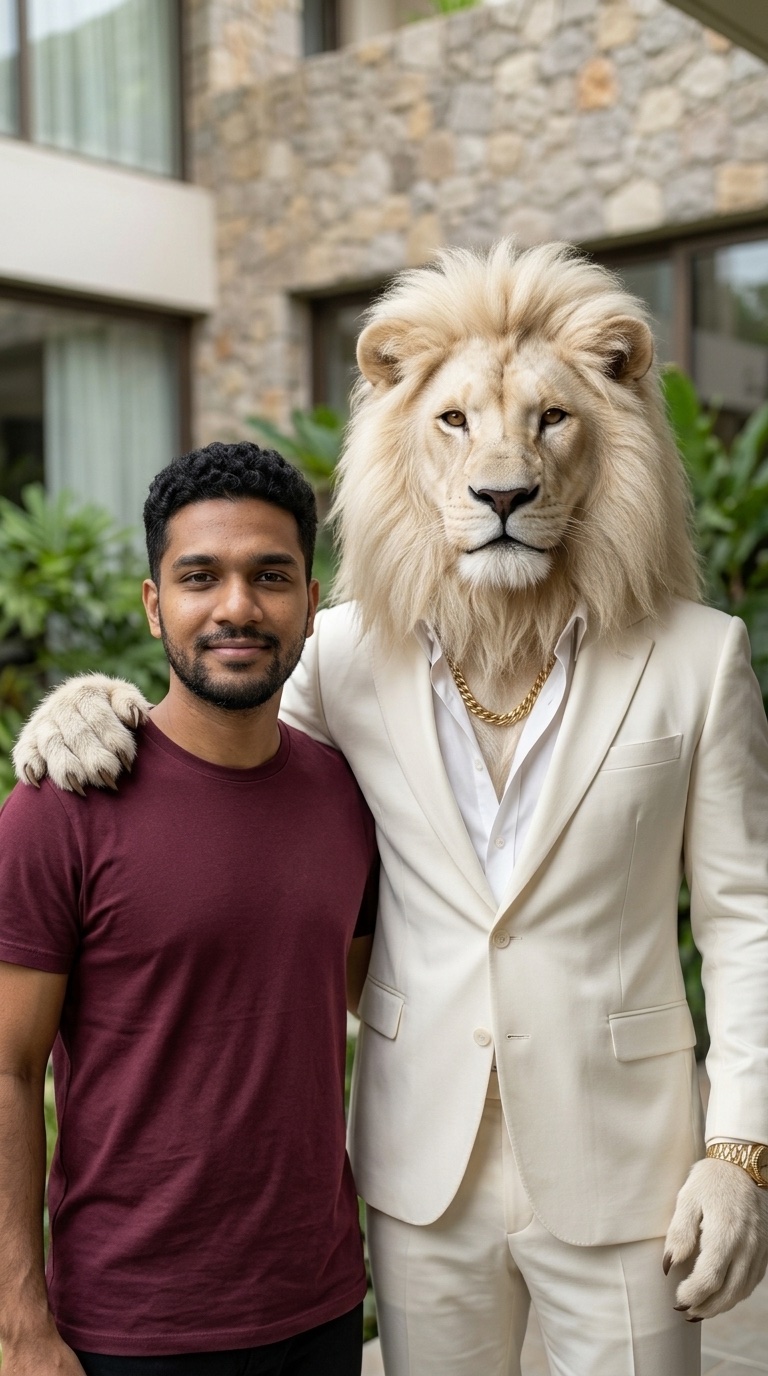
Sheru Bhai ke sath photo kaise banaye? Start with one portrait. The lion, white suit and photo prompt are already prepared.
1. Choose a clear portrait
Use your own photo or an adult’s photo with their permission. Choose one clearly visible face, even light and no heavy filter. Keep glasses in the input if you want them in the result.
Use JPG, PNG or WebP, up to 10 MB. Group photos, tiny faces and blurred screenshots make identity harder to preserve.
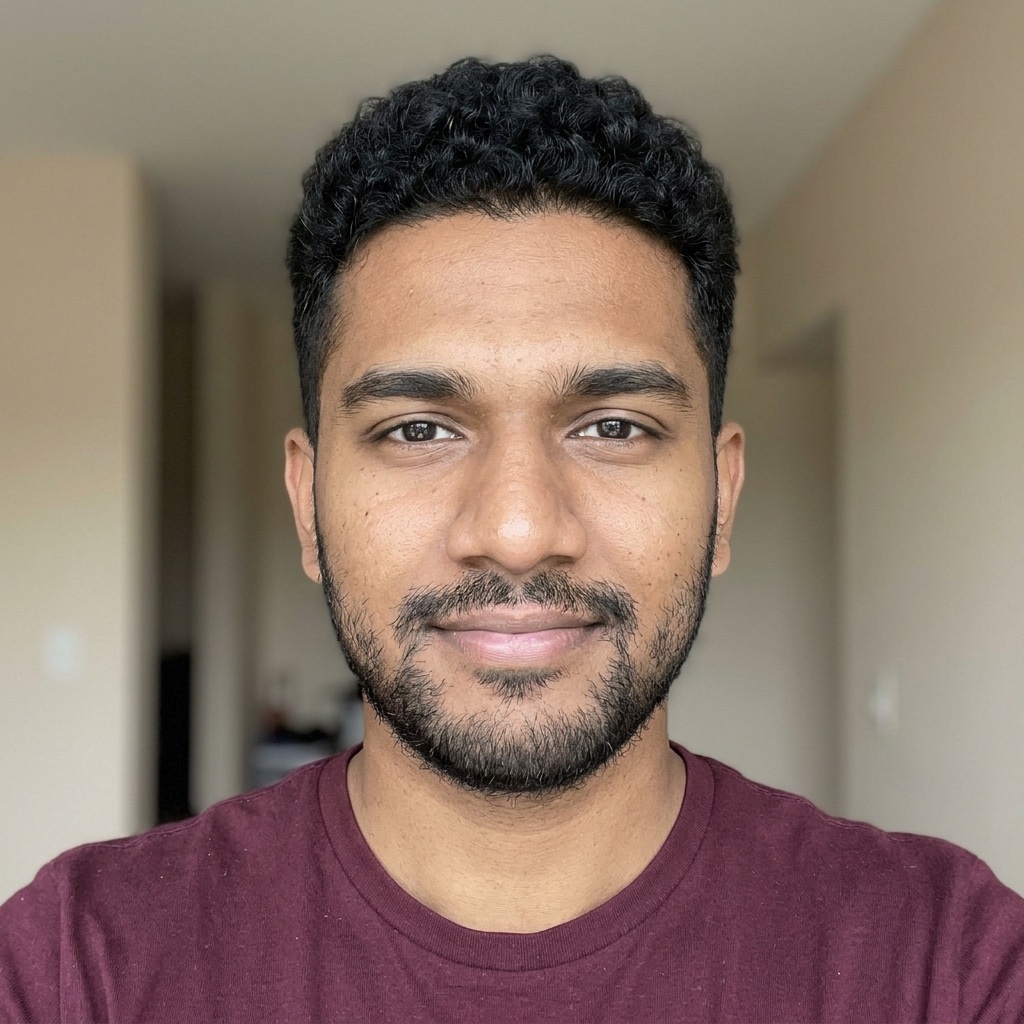
2. Upload it to the photo maker
Select your portrait in the generator and check its preview. The classic style includes the white lion, white suit, gold chain and friendly shoulder pose.
3. Create your AI photo
Choose Create my photo. Your image and the character reference are sent to the AI provider. Photo creation usually takes a few minutes and can take longer during busy periods. The page shows when your photo is being created.
Refresh in the same browser to return to your task. Avoid repeatedly starting new generations. The free pilot has a daily browser allowance and a shared limit.
4. Review and download
Check the face, glasses, hands and shoulder. Download the PNG and save it promptly: photos expire after 24 hours, with hourly cleanup. Tell people the image is AI-generated when sharing it.
If something goes wrong
- File rejected: export a real JPG, PNG or WebP under 10 MB. Renaming its extension does not convert it.
- Face looks different: try a closer, well-lit portrait without sunglasses or beauty filters. Exact identity preservation is not guaranteed.
- Creation paused: the allowance or browser check may limit requests. You can still download examples or copy the prompt.
- Hands look strange: AI can struggle with shoulder poses. Review the result before sharing.
Explore all photos · Read the photo prompt
Want to use another image editor?
The prompt page includes the exact English prompt and both reference requirements. Only our described workflow has been tested.